Run daily affiliate operations
Coach and staff guide
Manage members and, depending on access, classes, workouts, benchmarks, plans, and messages.
Maintained by RxApp ProductLast reviewed
Access depends on your role
RxApp uses Coach, Head Coach, and Admin staff roles. The selected affiliate and its active modules also affect the sidebar.
- Coaches can use Workout Planner, Benchmarks, Classes, and Members when the related module is active.
- Head Coaches can additionally access Membership Plans and Messaging.
- Admins can manage staff, settings, reports, and the affiliate's billing.
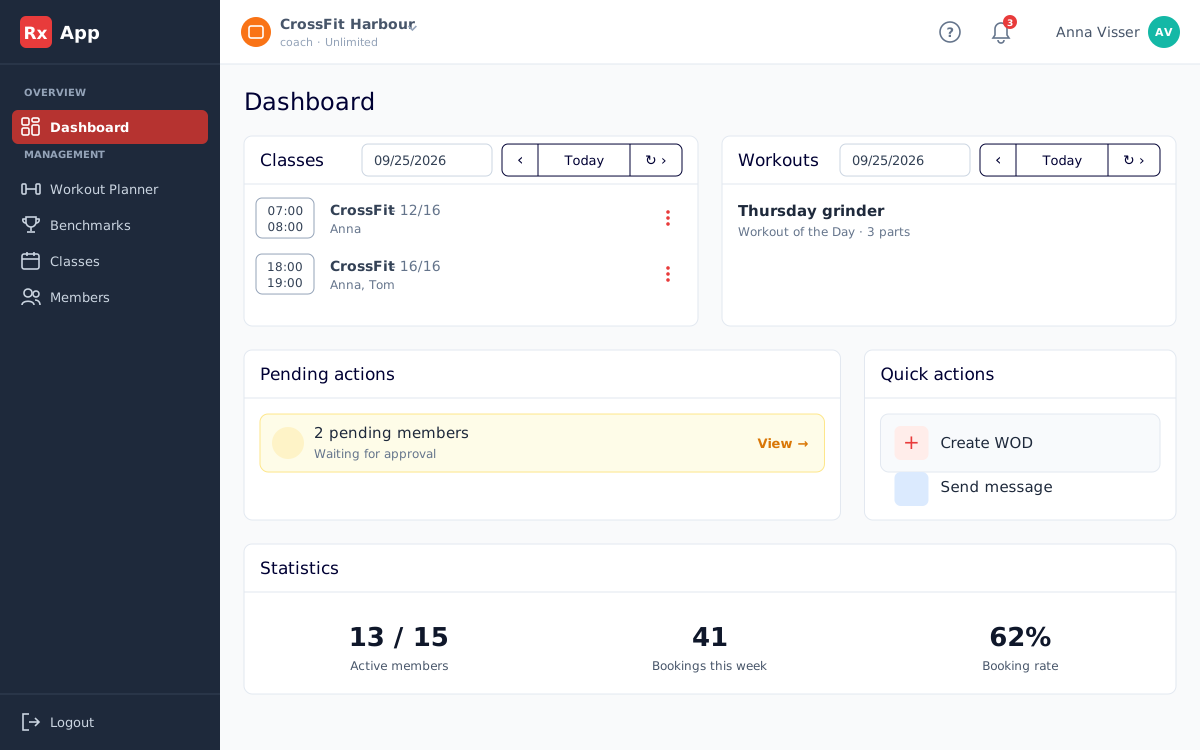
Your staff dashboard
- Classes and Workouts show today's schedule and programming. Use the arrows or Today to change the day.
- Pending actions lists members waiting for approval and draft messages that have not been sent. Select View to handle them.
- Quick actions opens Create WOD or Send message directly.
- Statistics shows active members, bookings this week compared with last week, and the booking rate.
Manage members
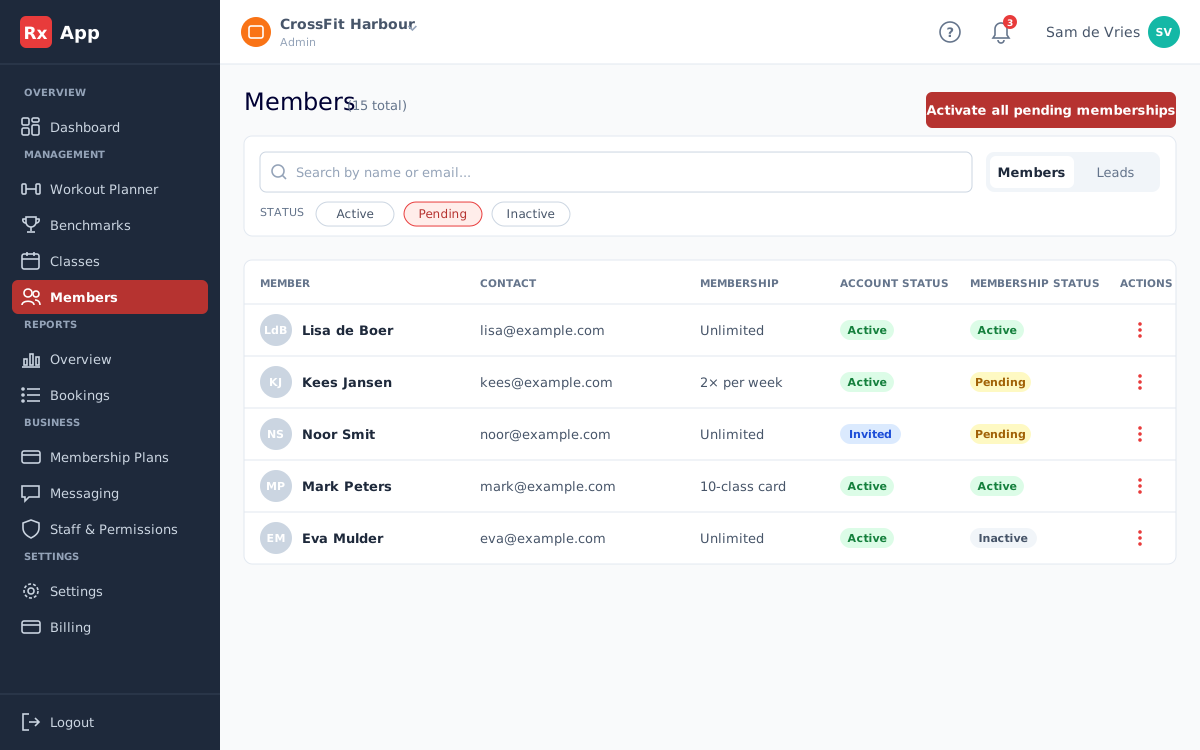
- Open Members to see everyone with a membership at your gym. Leads have their own page; see Work with leads.
- Search by name or email, and filter by Active, Pending, or Inactive membership status.
- Use the ⋮ menu on a row to open Edit member or the Booking report.
- Admins can select pending rows and choose Activate selected, or use Activate all pending memberships.
Activate and edit a membership
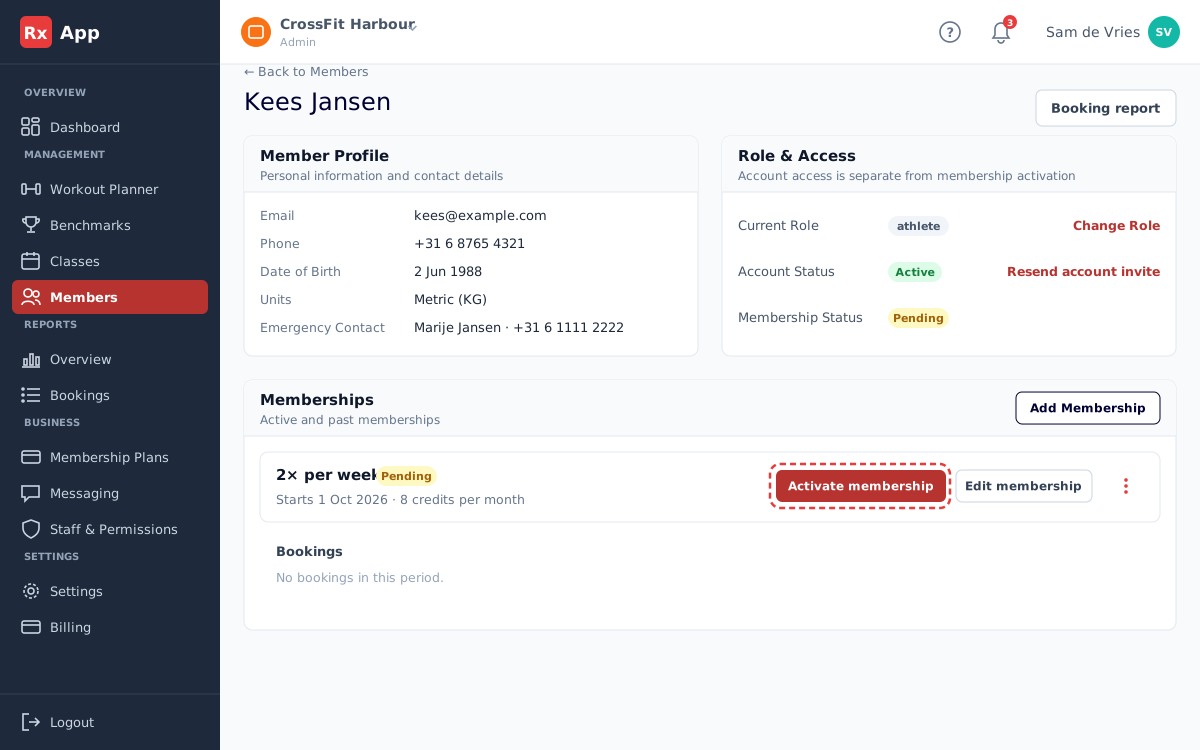
- Open a member from Members.
- Member Profile shows contact details, units, and the emergency contact.
- Role & Access shows the current role, whether the person can log in, and their membership status. Use Resend account invite when someone never set up their login.
- Under Memberships, select Activate membership on a pending membership, or Add Membership to give the member a membership.
- Use Edit membership to change dates or status, or Cancel membership and enter the last active day.
Work with leads
A lead is someone who is interested but is not a member yet, such as a person coming for a trial class. Open Leads in the menu to follow them up.
Each lead has a status: New, Intake planned, Intake done, Trial class (booked into at least one class), Member (their RxApp account has a membership at your gym) or Lost. The Open tab shows every lead that is not a member or lost.
- Select Add lead and enter the name, email address and optionally a phone number and comment. The lead gets one trial class straight away.
- Open a lead to see the details and a timeline of trial classes, invitations and changes.
- Select Plan trial class, choose a date and a class, and select Add to class. The class shows how many places are taken; a full class can't be chosen.
- Trial classes use credits, like a membership. The lead page shows how many are used (for example 1 of 2), and a cancelled class gives its credit back. Plan trial class always works on the lead page: when the credit is used up (for example after a no-show), it gives an extra trial class.
- On Dashboard you can also open the ⋮ menu of a class and select Add Lead. Search for an existing lead (it needs trial credit left; otherwise plan from the lead page), or enter a new one, who gets a trial class straight away. A lead with the same email address is never added twice.
- Select Invite for an RxApp account to send the lead an email to create an account, optionally with a membership. See Invite a lead with a membership.
- Select Mark as lost and choose a reason when someone is not coming back. Reopen lead brings them back to the open leads.
Invite a lead with a membership
After the intake you can invite the lead for an RxApp account and offer a membership straight away. The lead accepts it (or chooses another membership of your gym) and is a member from that day.
- Every staff member (coach, head coach, admin) and the owner can invite. Open the lead and select Invite for an RxApp account.
- Under Membership (optional), choose the membership to offer, or keep Account only, no membership. Select Send invitation.
- A new lead gets an email to choose a name and password; someone who already has an RxApp account gets an email to sign in. With a membership, the invitation is open for 7 days; without one, the link works for 24 hours.
- After signing in, the lead sees the offer: your gym, the membership, the price and the start date (today). They select Accept, or Choose another membership to pick one your gym offers on sign-up. Decline and Not now are also possible; Not now keeps the offer open.
- Then the lead completes any missing profile details, accepts your gym's terms when your gym enforces its own (see Terms for your members) and, when your gym collects memberships, gives a mandate: IBAN in RxApp for a bank file, or at their bank via Stripe. Steps already done are skipped.
- The membership is then active from today and the lead becomes a member.
- The lead page shows Invited with the state of the offer: offer open, offer accepted, offer declined, offer expired or offer lapsed. Offered membership shows which membership and until when it is open.
- Offer lapsed means the lead became a member in another way, for example because staff added a membership by hand.
- A new invitation replaces the previous one: only the latest offer counts.
- A lead who is already a member can only be invited without a membership.
- A lead with an open offer who signs up through Join a gym continues with the offer, so there is never a second membership.
Plan intakes
An intake is a meeting at the gym with someone who is interested. You plan it from the lead's page; the lead gets a confirmation by email with a calendar invite, reminders, and a link to move or cancel the intake.
- Admins and owners open Settings → Intakes. On the Roster tab, set the intake hours: per weekday one or more blocks, each with the staff member who does intakes then. Blocks of different people may overlap; then two intakes at the same time are possible. Under Absence, add the holidays of a staff member, or days the gym is closed (Everyone); no intakes are offered for them then. Intakes already planned in that period are listed with a link to the lead, so you can move them. Also set the reminders (for example 24 and 2 hours before). Add intake hours with the + of a day and click a block to change or remove it; change the other parts with Edit. Intakes can be planned as soon as there are intake hours and the gym has an address.
- On a lead's page, select Plan intake. Choose a date and one of the free times; each time shows who does the intake. To see only one person's times, choose them under Who does the intake. Or enter another time agreed with the lead and choose who does it. Times when someone already has an intake or coaches a class are not offered.
- The lead and the staff member get an email with a calendar invite. The lead's email has a link to move or cancel the intake, up to the time you set in Settings → Intakes; after that the lead is asked to contact the gym.
- Select Move to choose a new time or another staff member, or Cancel intake. The lead and the staff member get an email, and the reminders move along or stop.
- Once the intake has started, select Attended or No-show and add a note. Attended moves the lead to Intake done; a no-show does not.
Let leads plan an intake online
Leads can also plan an intake themselves: on your public page (a link or QR code), in an iframe or widget on your own website, or through the API. They choose a free time, fill in their name, email and phone number, and confirm by email. Only then the intake is booked and the lead appears under Leads.
- Open Settings → Intakes → On your website. Add the link to your privacy policy at the top, then check Public page.
- Share the link or download the QR code, for example for Instagram or the front desk.
- To put the form on your website, go to Build into your site: first add your website (the one from your gym profile is suggested), then check Iframe or Widget. Each opens with the code to paste on your site.
- Under House style, select Customise and choose your colour, the corners, the fields and the background. The preview shows the form, the page to move or cancel and the mail as leads see them. Select Save house style.
- For your own developer: on the API tab, create a key. The developer documentation explains how to use it.
Manage classes
Classes is available when your affiliate has the Schedule module.
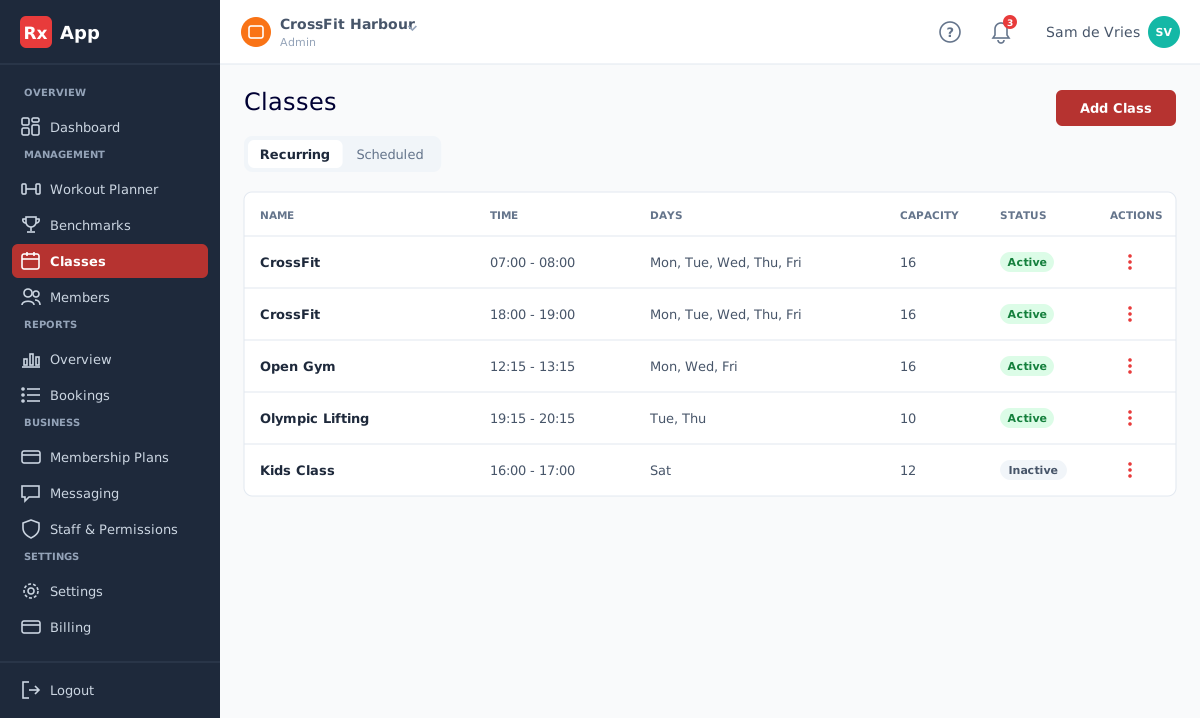
- Open Classes and choose Recurring or Scheduled.
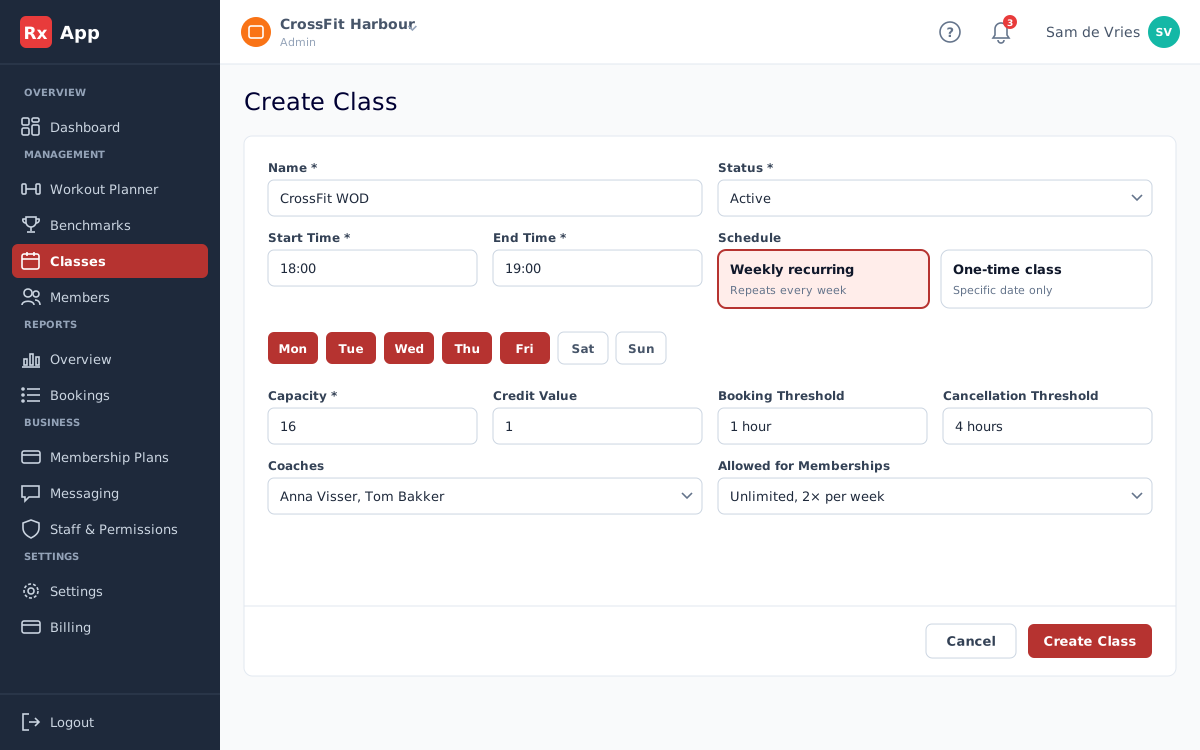
- Select Add Class. Enter the name, status, start and end time, and whether it is a Weekly recurring or One-time class.
- Set the capacity, the credit value, and the booking and cancellation thresholds in hours before the class.
- Choose the coaches and which memberships may book the class under Allowed for Memberships.
- Use the ⋮ menu on a class to edit or delete it. Booking history is kept when you delete a class.
Run a class on the day
- Select a class on Dashboard to open the attendee list with coaches, athletes, and the waiting list. Open injuries are flagged next to athletes.
- Use the ⋮ menu to Add Member to the class, Add Lead, or Edit only this occurrence (for example a different capacity or coach).
- Remove a booking or a recurring booking from the attendee list when needed.
- Select Message coaches to contact the coaches of that class.
Plan workouts
Workout Planner and Benchmarks are available when the Workout module is active.
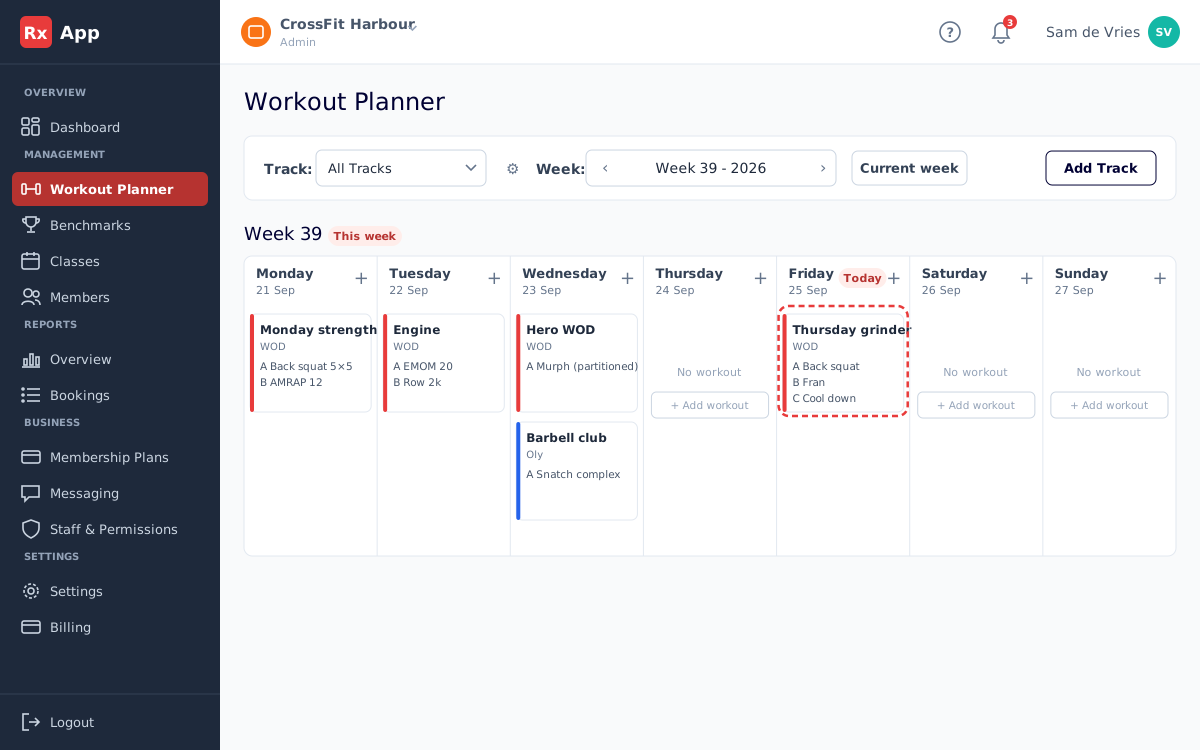
- Open Workout Planner, select a track or All Tracks, and move to the required week. Current week jumps back to this week.
- Choose + or Add workout on a day to open Create workout.
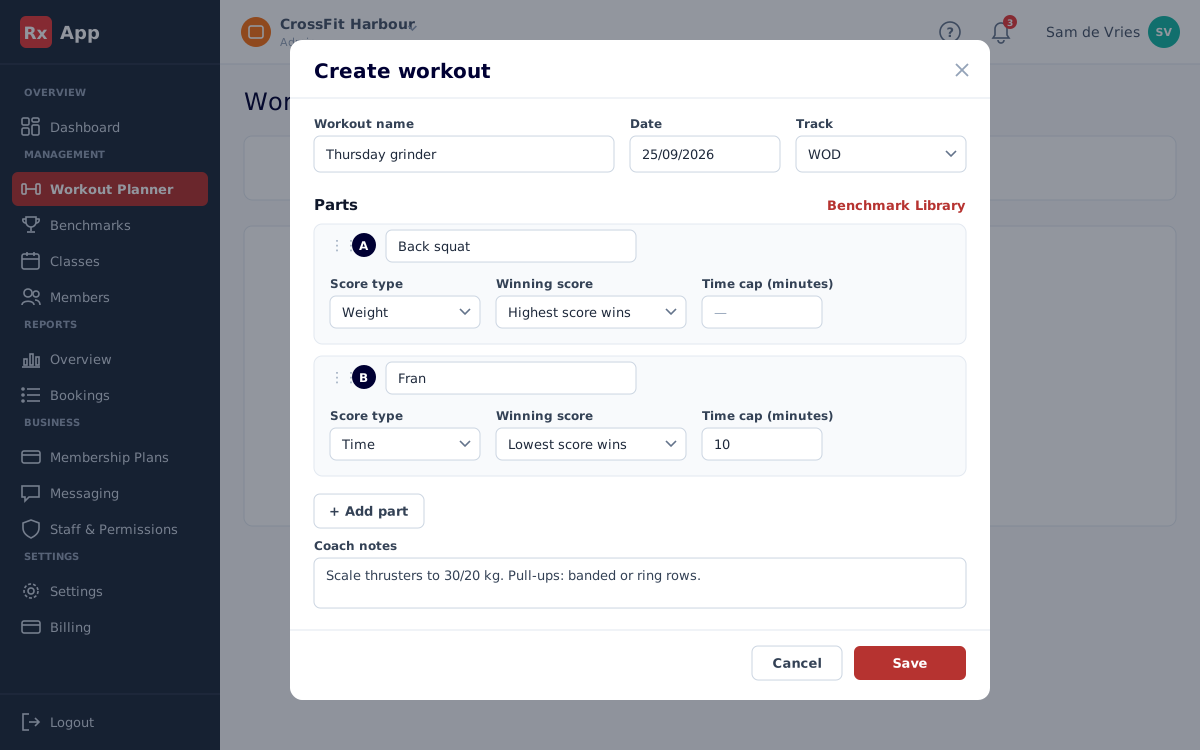
- Enter the workout name, date, and track, and add up to four parts. Pick a part from the Benchmark Library or write your own.
- Set score rules, time caps, and coach notes where needed.
- Open a workout card to see details and the ranking, or to edit or delete it. Drag cards within the same day and track to reorder them.
- Manage tracks and Add Track are next to the track selector.
- Tracks with programming analysis show a balance check of modality, time domain, and load.
Choose how a workout is scored
- Score type decides what athletes enter: time, reps, rounds + reps, weight, calories, meters, points, or completion only.
- Winning score decides whether the lowest or highest score ranks first.
- Time cap (minutes) is shown to athletes with the part.
- Coach notes are visible to staff only, in the portal and the mobile app.
Benchmarks and leaderboards
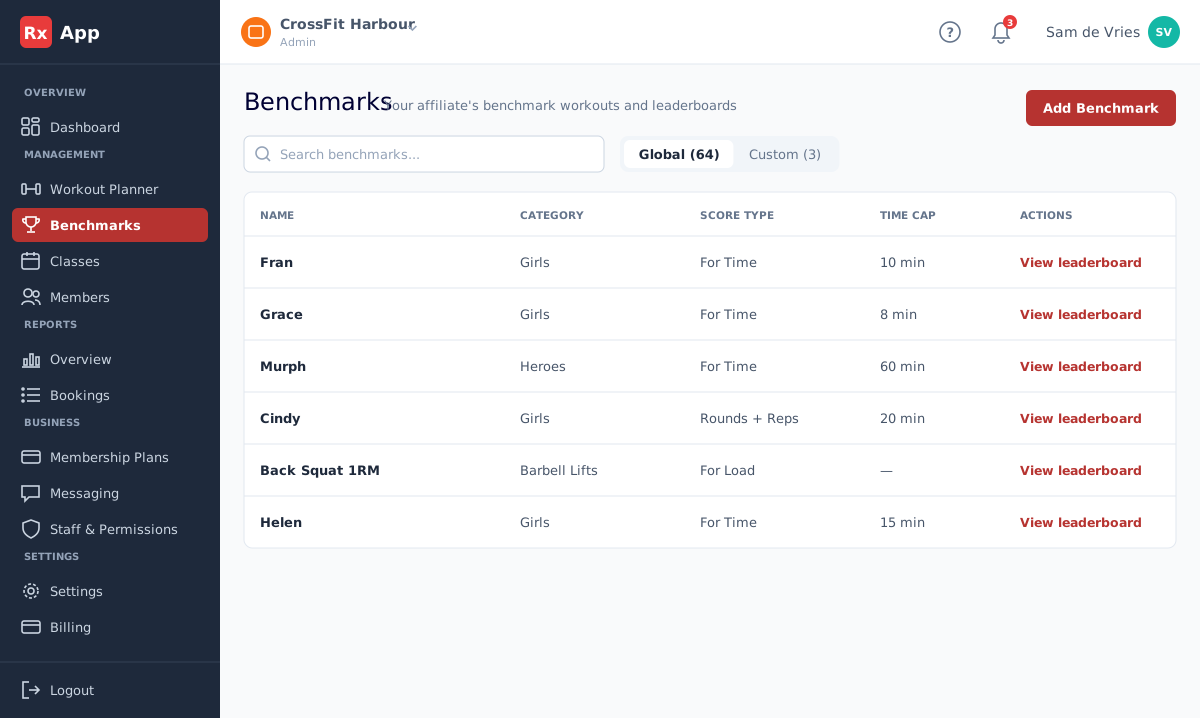
- Open Benchmarks and switch between Global benchmarks (such as Fran and Murph) and your affiliate's Custom benchmarks.
- Select Add Benchmark to create a custom benchmark with a score type, sorting, and time cap.
- Select View leaderboard to see the all-time best per athlete in your affiliate.
Send affiliate messages
Messaging is available to Head Coaches, Admins, and Root users for the selected affiliate.
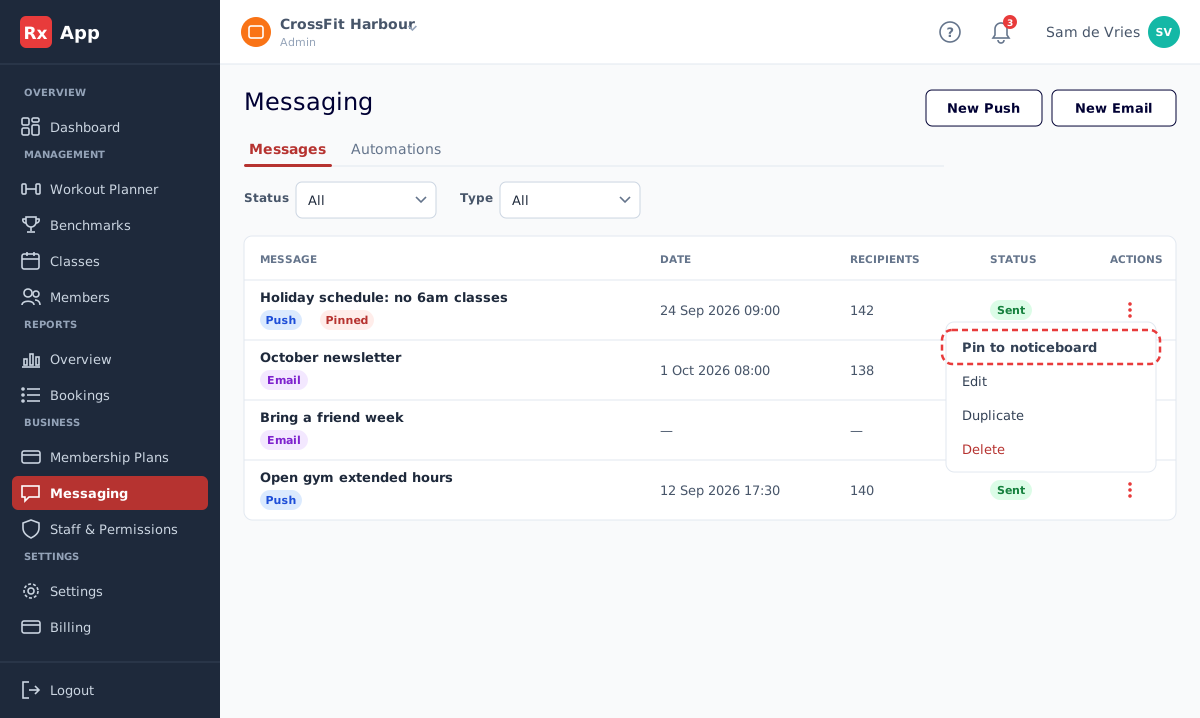
- Select New Push or New Email to create a message. Send it immediately or pick a date to schedule it.
- Filter by status (Draft, Scheduled, Sent) and type (Push, Email) on the Messages tab.
- Use the ⋮ menu to Edit, Duplicate, or Delete a message, or Pin to noticeboard for a sent message.
- Pinned messages stay at the top of members' notifications in the portal and the mobile app.
- Use Automations for birthday, member-journey, and booking-milestone messages.
Write a push or email message
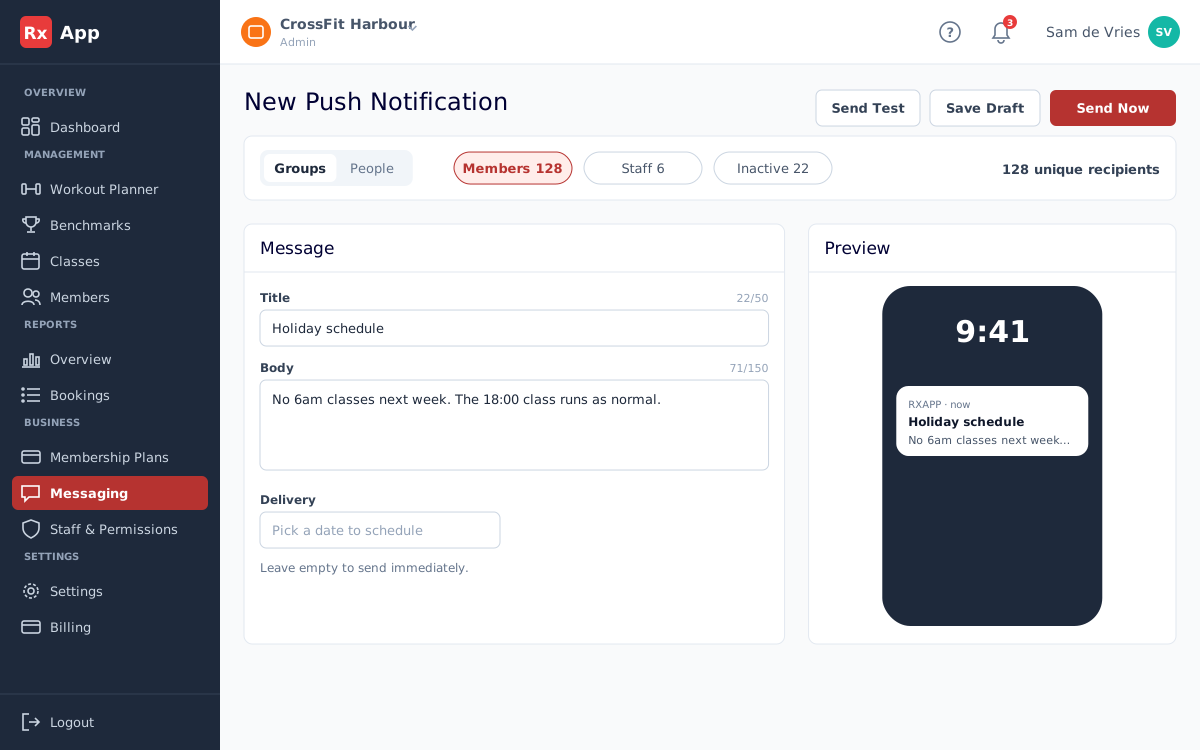
- Choose the recipients: Groups (Members, Staff, Inactive) or People to pick individual members. RxApp shows the number of unique recipients.
- Push: enter a title (up to 50 characters) and body (up to 150). The preview shows how it looks on a phone.
- Email: enter a subject and body. Use the toolbar for headings, lists, links, or a button, and variables such as {{name}}.
- Select Send Test to check it yourself, Save Draft to finish later, or Send Now.
- To schedule, pick a date and time under Delivery; the send button changes to Schedule.
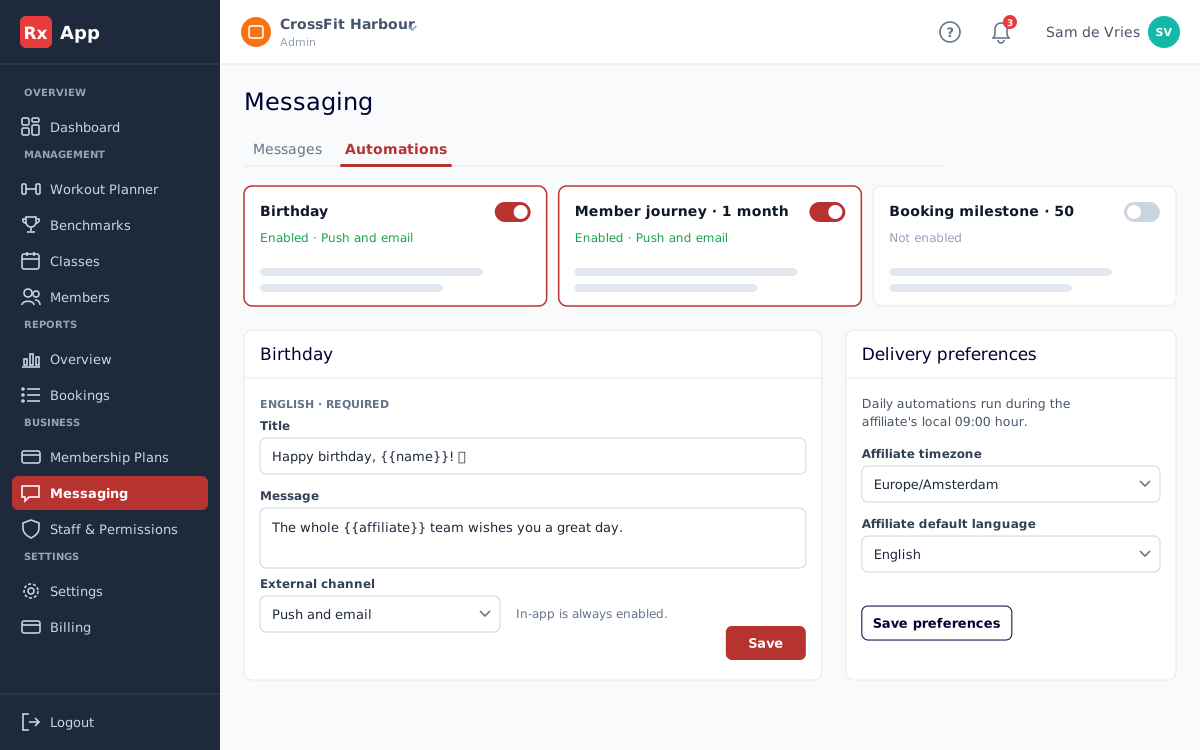
Automate recurring messages
- Open Messaging → Automations.
- Choose an automation: Birthday, Member journey (after 2 weeks up to 1 year), or Booking milestone.
- Write the English title and message. Dutch is optional; recipients get the English version when it is empty.
- Choose the External channel (push and email, push only, or email only) and select Save. Turn the automation on with its switch.
- Under Delivery preferences, set the affiliate timezone and default language.