
Configure and understand your affiliate
Affiliate owner guide
Start your affiliate, set up access, staff, memberships, and reporting, and manage the affiliate's RxApp subscription.
Maintained by RxApp ProductLast reviewed
Ownership and staff access are different
Affiliate ownership is tracked separately from staff roles. Some pages require an Admin or Root role even when you are an owner.
What you can see depends on your staff role, affiliate ownership, and active RxApp modules.
Start your affiliate and trial
- Create an account as an affiliate owner and verify your email.
- After signing in, Create your affiliate opens. Enter the contact email, affiliate name, country, VAT number, address, and timezone. Your progress is saved automatically.
- Choose modules: Schedule for classes and bookings, Workout for programming and results. Both are free during the trial.
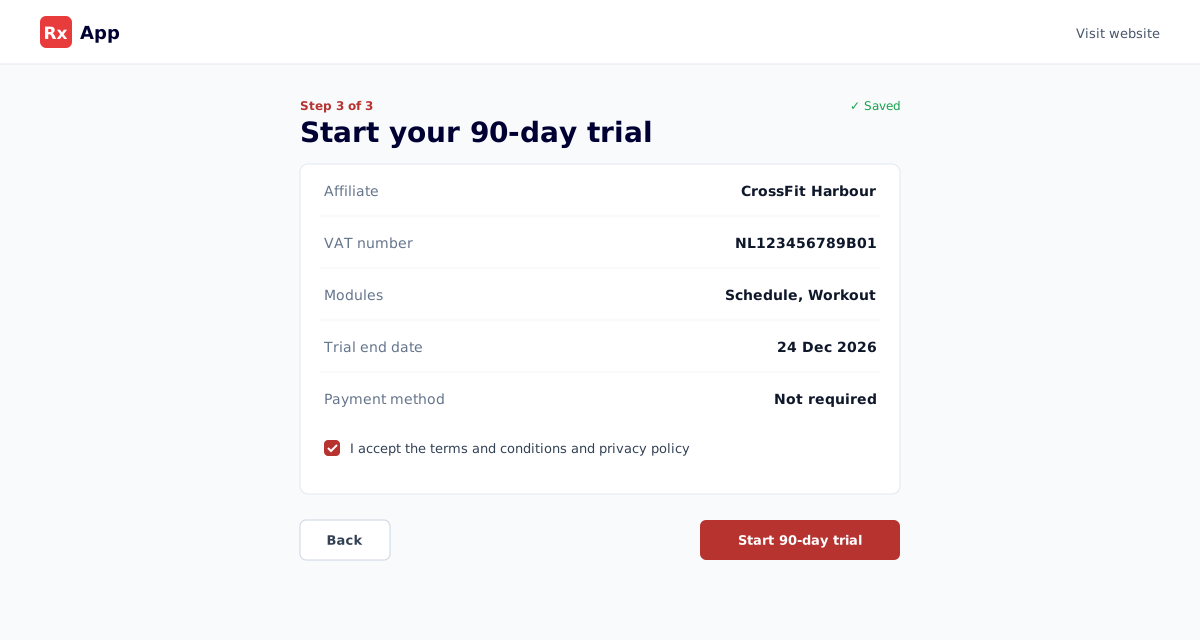
- Review the summary, accept the terms, and select Start 90-day trial. No payment method is required.
Configure the affiliate
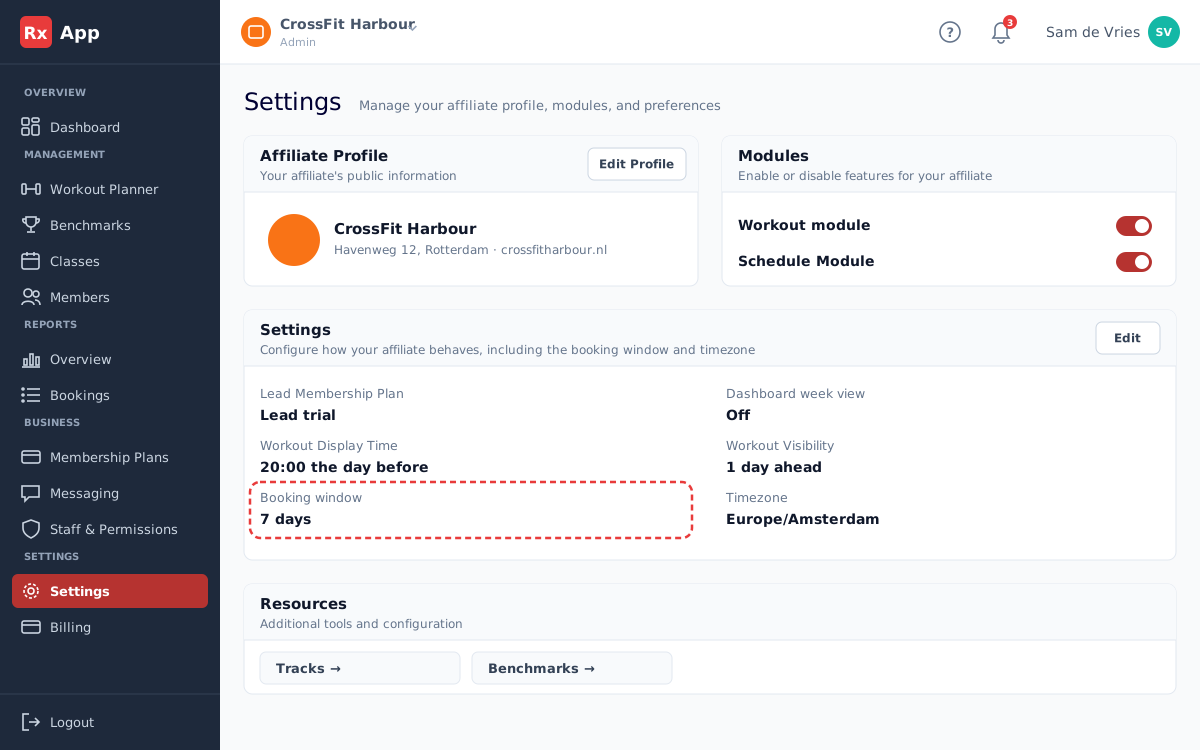
- Open Settings. Use Edit Profile to update the affiliate's name, address, email, and website, and select the logo to change it.
- Under Modules, turn the Workout and Schedule modules on or off for athletes.
- Select Edit under Settings to choose the Lead Membership Plan used for new leads.
- Set the Workout Display Time and Workout Visibility to control when athletes see upcoming workouts.
- Set the Booking window to control how many days ahead members can book a class, or leave it with no limit. Coaches are not limited.
- Use Tracks and Benchmarks under Resources for workout-specific configuration.
Terms for your members
Your members always accept RxApp's terms. Your gym can also have its own member terms and privacy statement. Until you add your own text, RxApp's default text is used, filled in with your gym's details.
Members only have to accept your gym's terms when your gym enforces them. Then they accept them before their membership starts, and again after every change.
- Open Settings → Terms. It shows whether RxApp's default text or your own text is used, the version, and whether your gym enforces its terms. Select Show the text to read it.
- Admins and owners select Edit, change the member terms and the privacy statement, and select Publish. Headings start with # or ##, list items with -. An empty field uses RxApp's default text.
- To stop using your own text, select Edit and then Back to the default.
- Select Enforce to have every member accept your terms. After the confirmation, members who have not accepted the current version cannot book until they do. Select Stop enforcing to turn it off again.
Organise programming in tracks
- Open Settings → Tracks and select Add Track. Give it a short code (for example WOD), a name, a description, and a colour.
- Drag tracks to change their order, and use the switch to enable or disable a track.
- Turn on Programming analysis to show the balance check in the Workout Planner for that track.
- Athletes can filter tracks in the mobile app, so keep names recognisable.
Manage staff and permissions
- Open Staff & Permissions.
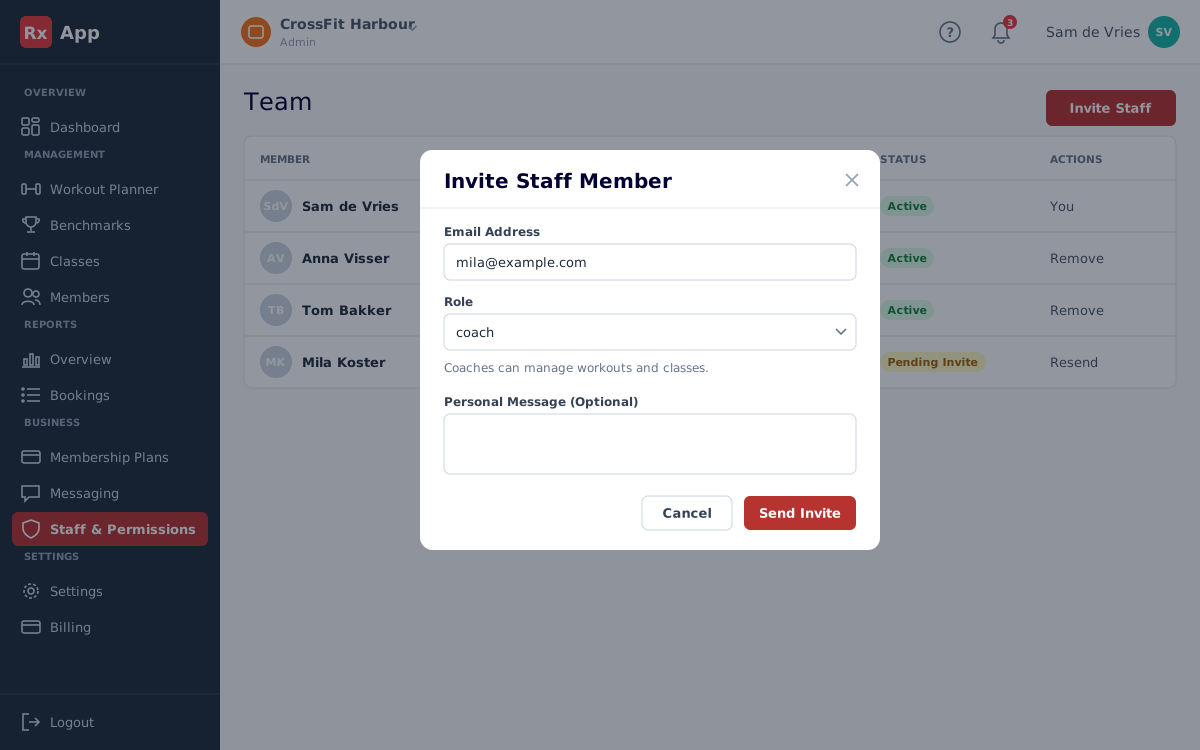
- Select Invite Staff, enter the email address, and choose Coach, Head Coach, or Admin. Add a personal message if you like.
- Review pending invitations and use Resend or Revoke when necessary.
- Use Remove to take away someone's staff access; they remain an athlete.
Membership Plans and Billing
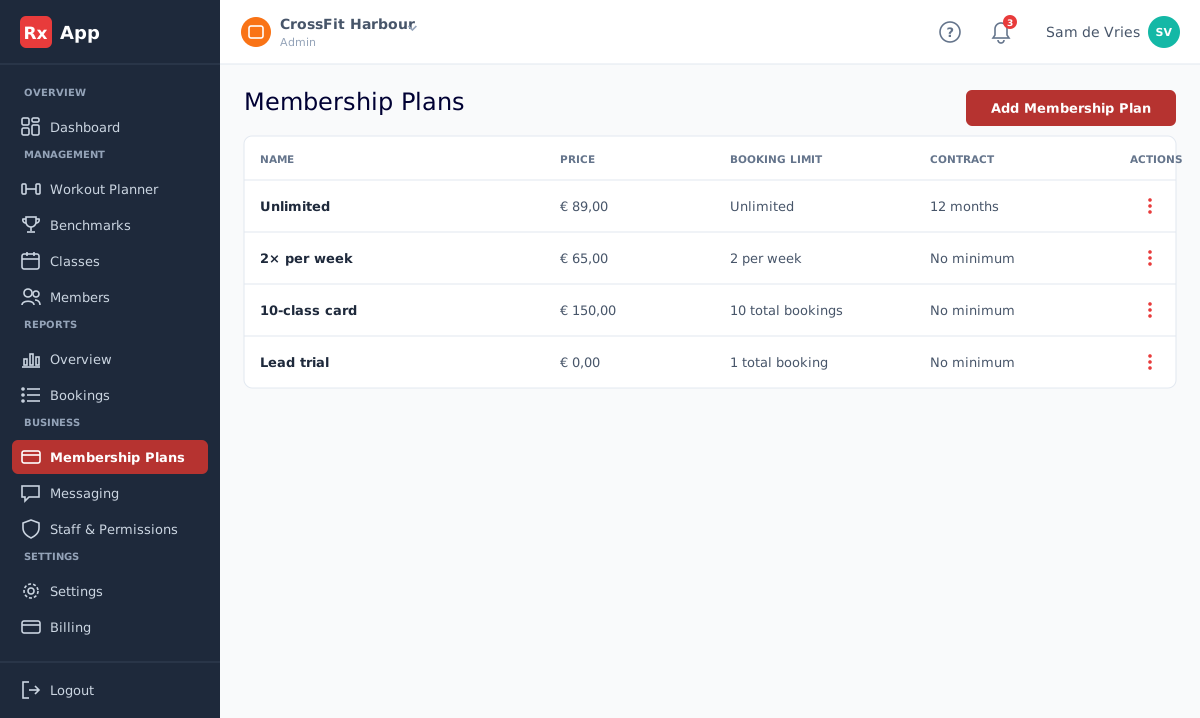
These sections manage different things and should not be confused. Memberships defines the memberships, prices, booking limits, and contract periods your affiliate offers athletes. Billing manages the affiliate's own subscription to RxApp.
- Open Membership Plans and select Add Membership Plan.
- Enter a name, price, and description, then choose the Limit Type (per month, per week, or total bookings) and the Booking Limit. Use 0 for unlimited.
- Set the Contract Period in months (0 for no minimum) and optional start and end dates.
- Turn on Show on signup to offer the plan when athletes join your affiliate.
Your RxApp subscription
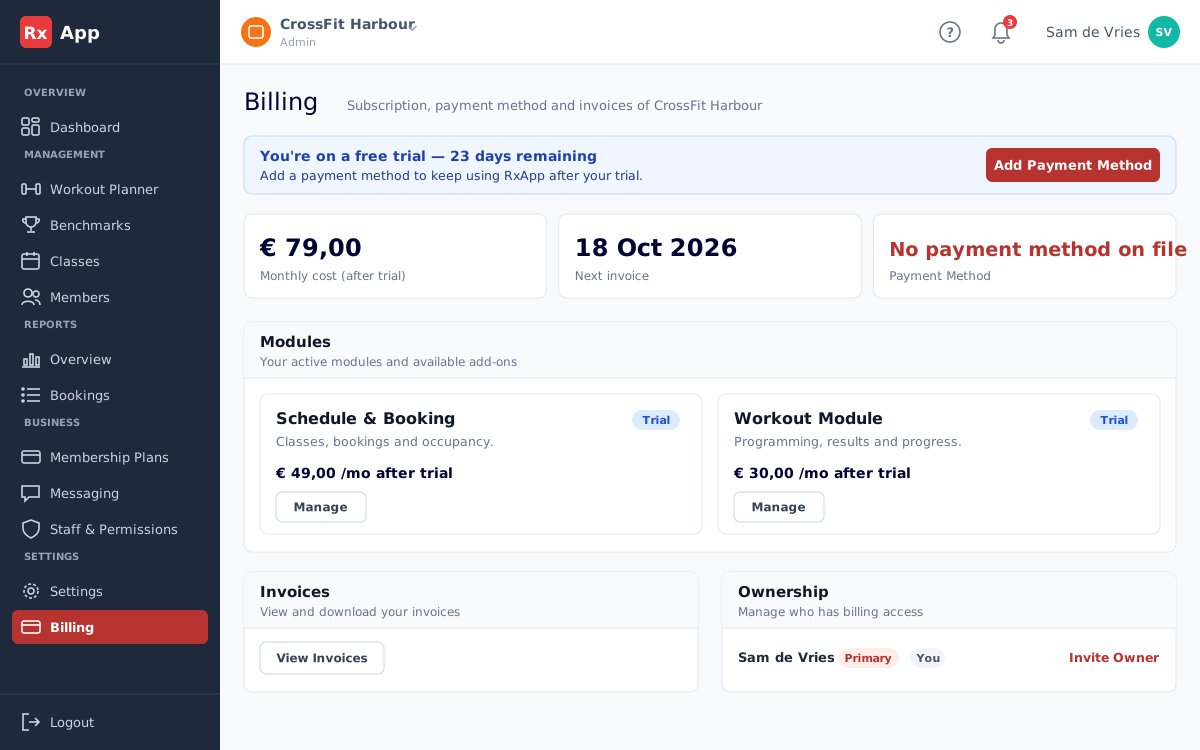
- Billing shows your trial days remaining, the monthly cost after the trial, the next invoice, and your payment method.
- Select Add Payment Method before the trial ends to keep using RxApp without interruption.
- Under Modules, activate or cancel Schedule & Booking and the Workout Module. Workout requires Schedule; cancelling Schedule ends the subscription at the end of the period.
- Select View Invoices to download invoices from the payment portal.
Use reports
Reports are available to coaches, head coaches, admins and owners; revenue only to admins and owners. Values depend on the underlying membership and booking data.
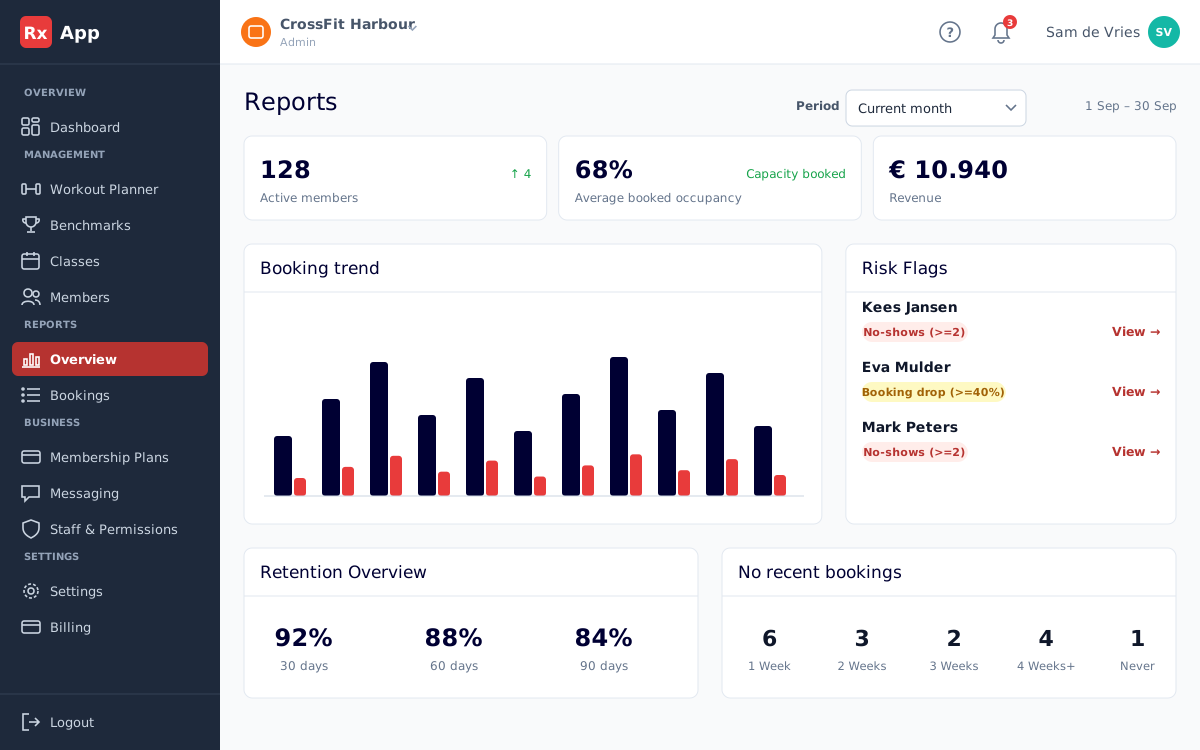
- Choose a Period at the top, from the current month to last year.
- The overview shows active members, occupancy, and revenue, plus a card for each of the four report pages: Bookings, Members, Acquisition, and Attention. Select View on a card to open that page.
- Bookings shows booking trends and peak hours. Members shows retention and segmentation. Acquisition shows new members and lead conversion. Attention shows risk flags, members without recent bookings, and open injuries.
- Risk Flags highlights members with repeated no-shows or a booking drop. Select View to see their booking behaviour.
- Open a member from a report to review the supporting detail before taking action.
Spot members who need attention
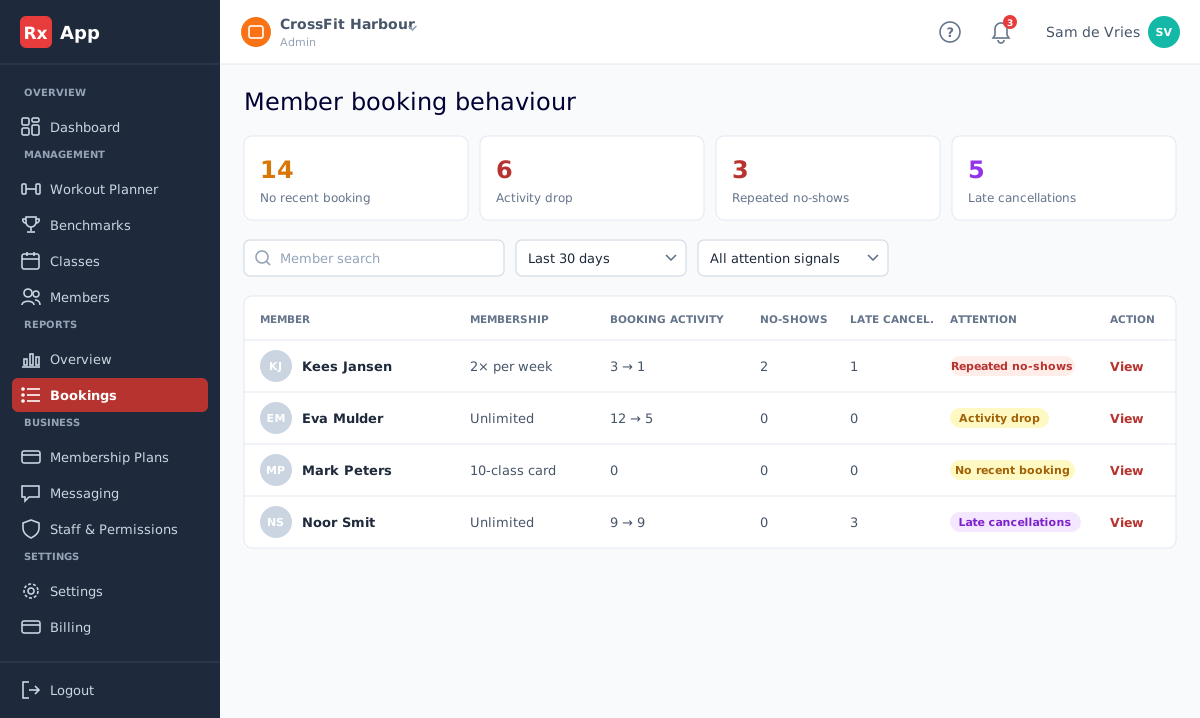
- Open Reports → Attention.
- Under No recent bookings, select View report.
- Select a summary card, such as No recent booking or Repeated no-shows, to filter the list.
- Narrow down by period, attention signal, membership plan, or membership status.
- Select View to open a member's booking report with their most booked classes and every individual booking.
Member collections (direct debit)
Some affiliates can collect membership fees through RxApp by SEPA direct debit. When this is available for your affiliate, owners see Member collections under Management.
- Settings: connect your Stripe account and review the monthly cost indication.
- Members: prepare each member's agreed amount and billing cycle, then release it for collection.
- Members authorise the direct debit themselves via Membership → Payments; staff cannot sign for them.
- Transactions: follow collected, paid, and failed payments and export them as CSV.
Manage ownership carefully
- Billing → Ownership shows current owners and pending ownership invitations.
- Select Invite Owner to invite an existing admin as co-owner.
- Use Transfer Primary to hand over primary ownership; the new owner confirms by email.
- Set the Billing email that receives invoices; by default it is the affiliate email.