
RxApp on iOS and Android
Mobile app
Book classes, log scores, follow your progress, and get affiliate messages from the RxApp app on your phone.
Maintained by RxApp ProductLast reviewed
Sign in and verify your account
The mobile app uses the same account as the web portal. Download RxApp from the App Store or Google Play and sign in with your email and password.
- Open the app and select Sign in, or choose Create one to register with your name, email, and a password of at least 8 characters.
- When RxApp asks you to verify your email, enter the six-digit code from the email and select Verify and sign in.
- Did not receive the code? Select Resend code, or Use another account to start over.
- Allow notifications when your phone asks, so you receive booking confirmations and affiliate messages.
Find your way around
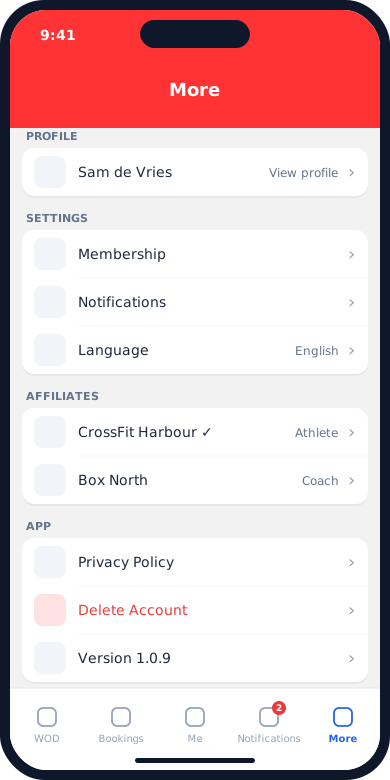
The tab bar adapts to your affiliate. Without an affiliate membership you only see Me, Notifications, and More.
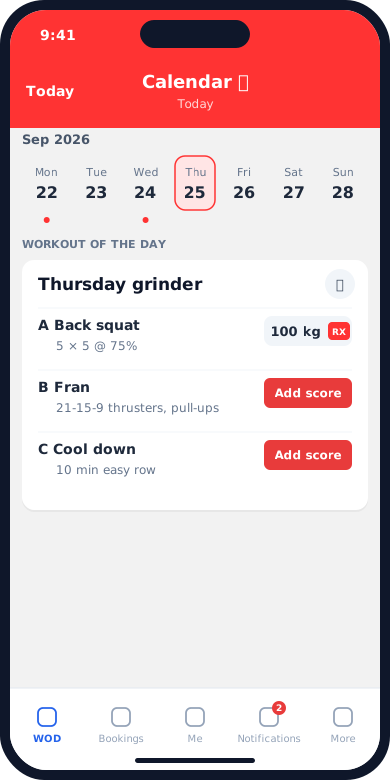
- WOD shows the programmed workouts for the selected day (Workout module).
- Bookings shows the class schedule and your bookings (Schedule module).
- Me collects your results, benchmarks, lifts, booking history, and personal workouts.
- Notifications lists Hi Fives, comments, personal records, and affiliate messages. Pinned affiliate messages stay at the top.
- More contains your profile, membership, notification settings, language, affiliates, and account deletion.
Book, cancel, or join a waiting list
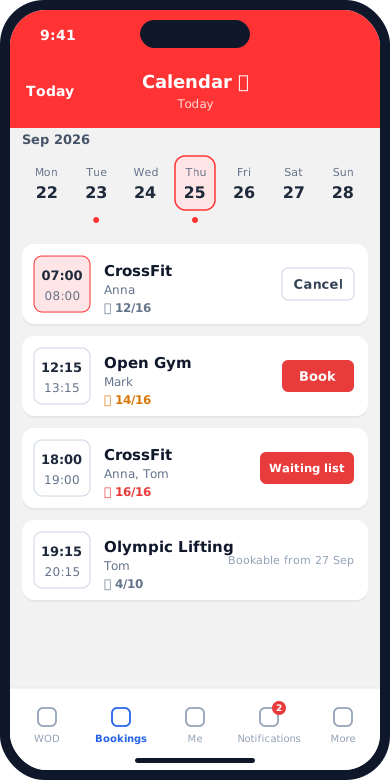
- Open Bookings and choose a day in the week strip. A red dot marks days on which you have a booking.
- Select Book on a class. The counter shows booked places and capacity; it turns orange when few places are left.
- When a class is full, select Waiting list. You then appear on the waiting list in the class details.
- Select Cancel to cancel. Close to the start time RxApp warns that cancelling now counts as a late cancellation.
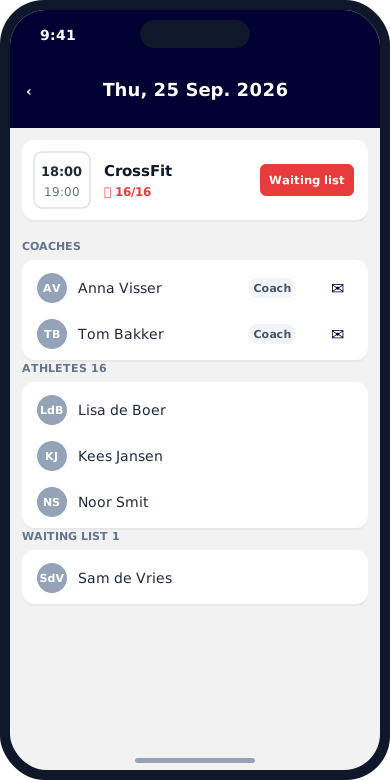
- Tap a class card to see coaches, athletes, the waiting list, and late cancellations. Use the envelope next to a coach to send them a message.
- Bookable from followed by a date means the class is outside your affiliate's booking window. Try again from that date.
- A No active membership banner means your membership has not been approved yet. Tap it for your affiliate's contact details.
See who is coming
Tap any class to open its details. You see the coaches, the athletes who booked, the waiting list, and late cancellations. Book or cancel from the top of the screen.
Log a workout score
- Open WOD and choose the day. Workouts are grouped by track; use the filter icon to show only the tracks you follow.
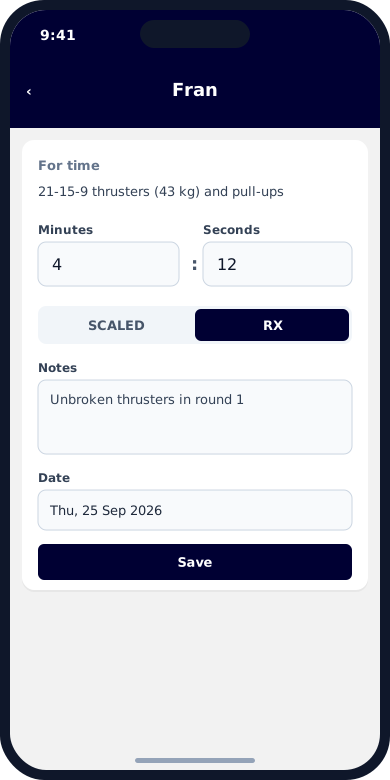
- Select Add score on the part you completed.
- Enter your score. The fields depend on the workout, for example minutes and seconds, rounds and reps, or weight per set.
- Choose SCALED or RX, add notes if you like, and check the date.
- Select Save. RxApp celebrates when you set a new personal record.
- Tap a logged score to edit it.
- Tap the people icon on a workout card to open the leaderboard, split by RX and Scaled and by gender.
- Open someone's result to give a Hi Five or leave a comment.
Track your progress
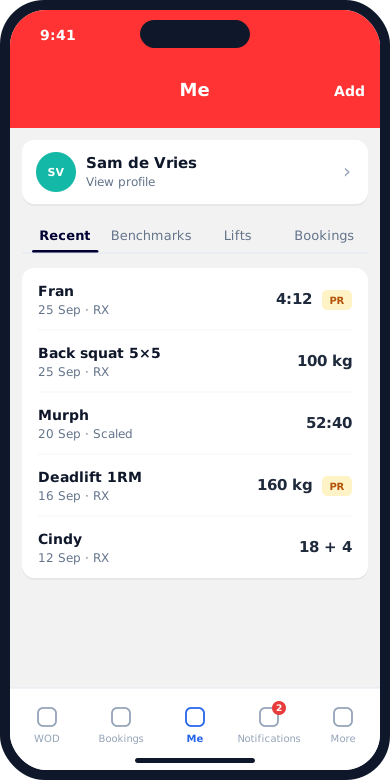
- Open Me. Recent lists your latest results; a PR badge marks personal records.
- Use Benchmarks and Lifts to see your best score per level for each benchmark workout and lift.
- Select a benchmark or lift to open Progress, with your current PR and all attempts.
- Select Add to log a personal workout: pick a benchmark from the library or choose Create workout for your own training.
Notifications and affiliate messages
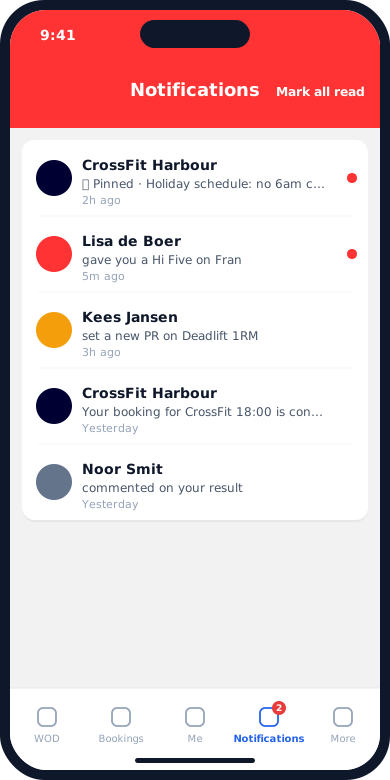
- The Notifications tab shows a badge with the number of unread items.
- Tap a Hi Five or comment to open the result it belongs to. Tap an affiliate message to read it in full.
- Pinned messages from your affiliate, such as a holiday schedule, stay at the top of the list.
- Select Mark all read to clear the unread markers.
Join or switch affiliates
- Open More → Membership and select Connect with a gym, or Want to join another gym?.
- Search for your affiliate and choose a membership.
- Complete any profile details the affiliate requires, such as date of birth and an emergency contact.
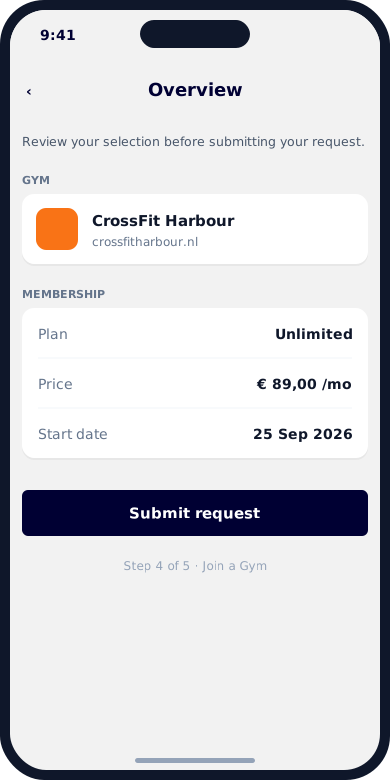
- Review the overview and select Submit request. You receive an email when the affiliate approves your membership.
- Belong to more than one affiliate? Open More, select the affiliate under Affiliates, and choose Switch Affiliate.
Profile, notifications, and language
- More → Profile shows your details. Select Edit to change your name, email, password, phone, date of birth, and emergency contact.
- Tap your avatar to take or choose a new profile photo (JPEG, PNG, or WebP, up to 4 MB).
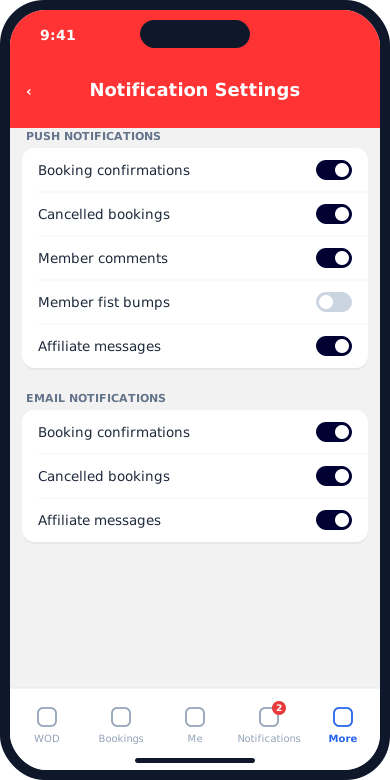
- More → Notifications controls which push and email notifications you receive.
- More → Language switches the app between English, Nederlands, Deutsch, Français, and Español.
- More → Delete Account permanently removes your profile, workout history, benchmarks, and membership at the affiliate after you confirm with your password.
What you do in the web portal instead
The mobile app focuses on training. Use the web portal for the rest.
- Injuries, weight units, and payment details are managed in the web portal. The new password you choose after Forgot your password? is also set on a web page.
- Coaches see coach notes and all upcoming workouts in the app. Planning workouts, managing members, messaging, reports, billing, and settings happen in the web portal.
- Sign out from More happens immediately, without a confirmation step.