
A tour of the web portal
Getting started
Create an account, find your way around the portal, and understand why your menu depends on your role and your affiliate's modules.
Maintained by RxApp ProductLast reviewed
Create your account
Everyone starts with a personal RxApp account. You can use it on its own to log workouts, connect it to the affiliate where you train, or use it to start a new affiliate.
- Open app.rxapp.io and choose Sign up.
- Athletes and coaches choose Athletes & Coaches and select Create free account. Affiliate owners choose Affiliate Owners and select Create account.
- Enter your name, email address, and a password of at least 8 characters.
- Open the verification email and follow its link to verify your account, then sign in.
- Were you invited by your affiliate or as staff? Use the link in the invitation email instead; it creates your account and connects it in one go.
Find your way around
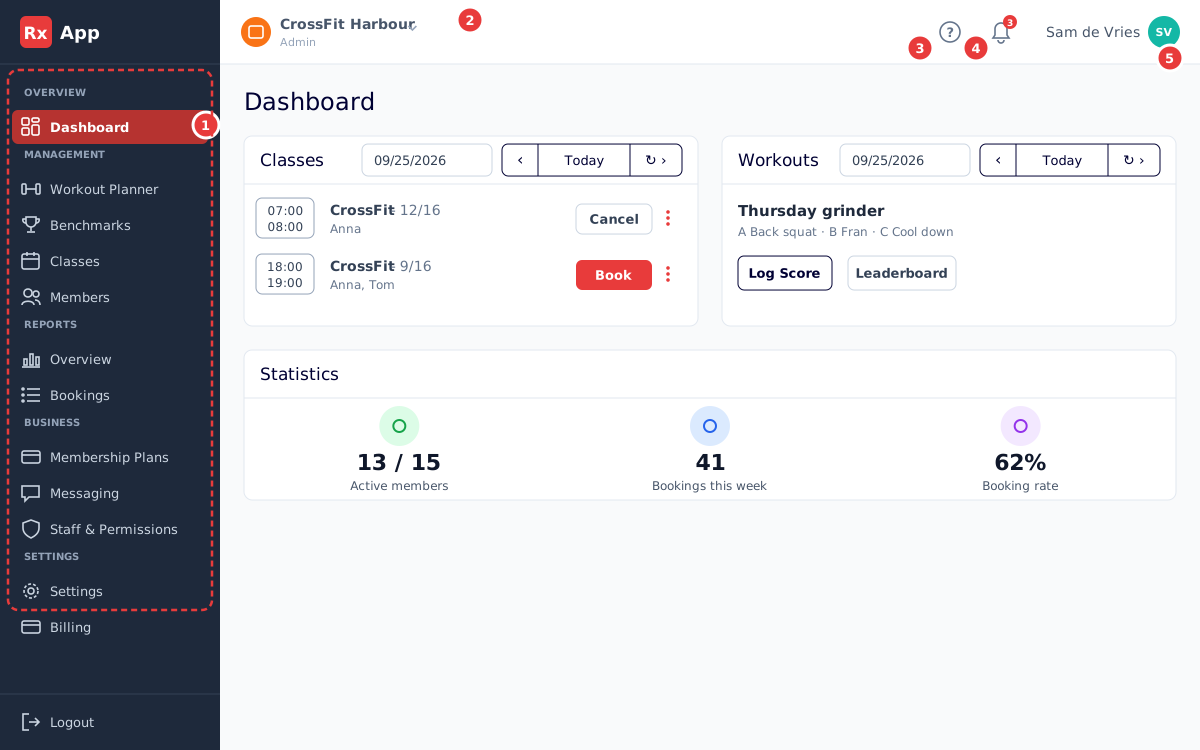
Every page in the portal shares the same frame. The numbers match the illustration above.
- The sidebar lists the areas you have access to, grouped into Overview, Management, Reports, Business, and Settings. Use the round arrow on its edge to collapse it to icons.
- The affiliate switcher shows the affiliate you are working in, with your role and membership plan. Open it to switch when you belong to more than one affiliate.
- The question mark opens RxApp help with guides for the page you are on.
- The bell opens your notifications. The red badge shows how many are unread.
- Your name and avatar open a menu with Profile, Account, My Workouts, Membership, Preferences, and Logout.
Why your menu looks different
RxApp shows only what applies to you. Three things decide what you see: your role at the selected affiliate, whether you own that affiliate, and which modules the affiliate uses.
- Athletes see Dashboard, plus My Workouts, Profile, and Notifications from the header.
- Coaches also see Workout Planner, Benchmarks, Classes, and Members.
- Head Coaches also see Membership Plans and Messaging.
- Admins also see Staff & Permissions and Settings. Coaches, head coaches, admins and owners see Reports; only admins and owners see revenue. Admins and owners see Billing.
- The Schedule module adds classes and bookings. The Workout module adds programmed workouts, scores, and benchmarks.
Get help on any page
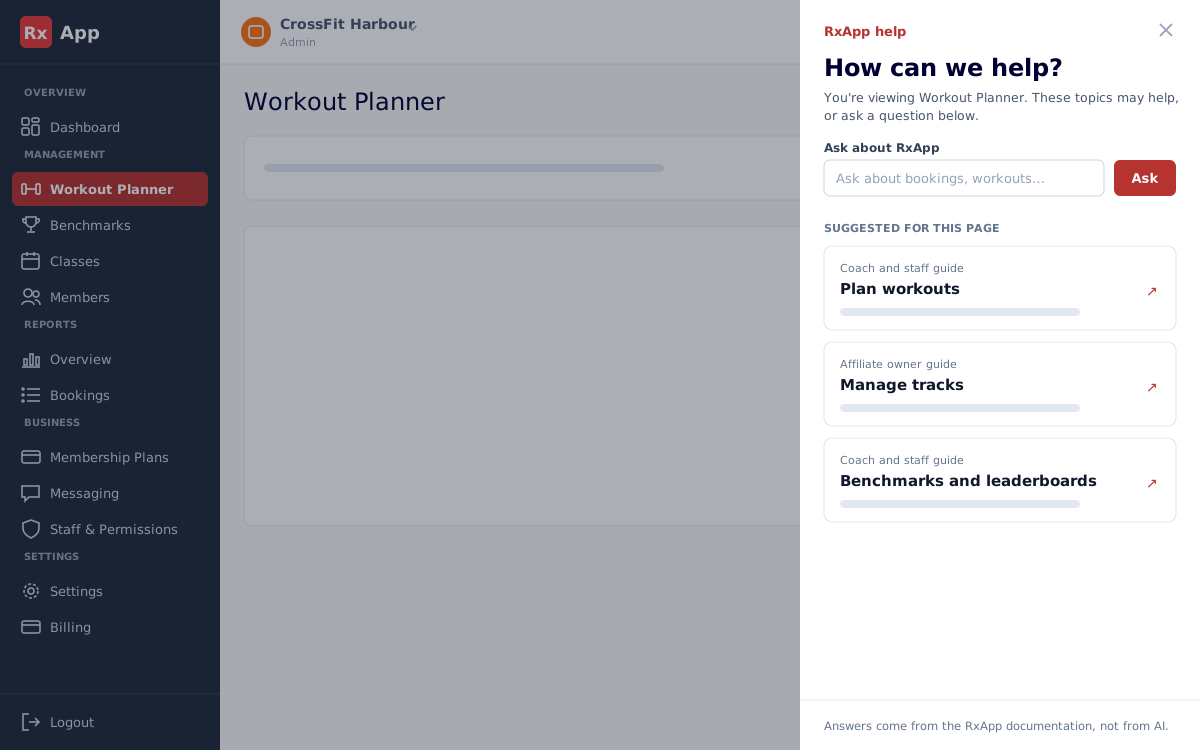
- Select the question mark in the header.
- Under Suggested for this page, open a topic that matches what you are doing.
- Or type a question in Ask about RxApp, for example cancel booking or invite staff, and select Ask.
- Select a topic to open the full guide in this documentation.
Change the portal language
- Open your avatar menu and select Preferences.
- Choose English or Nederlands as Preferred language.