Train and stay connected
Athlete guide
Join an affiliate, book classes, log workout scores, and manage your personal training history.
Maintained by RxApp ProductLast reviewed
Before you start
You need a verified RxApp account. Your affiliate membership and the affiliate's active modules determine which tools appear.
- The Schedule module controls class bookings and waiting lists.
- The Workout module controls programmed workouts, score logging, and benchmarks.
- Without an affiliate you can still log personal workouts and benchmarks from Home and My Workouts.
Join an affiliate
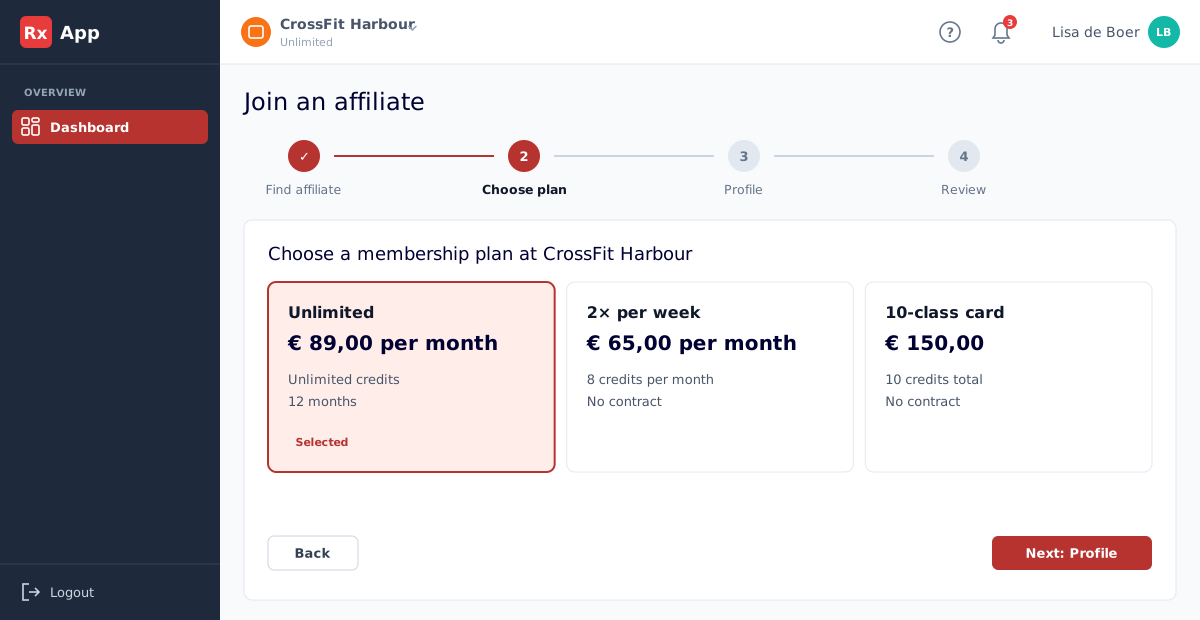
- Open your avatar menu, select Membership, and choose Join another affiliate.
- Find affiliate: search for your affiliate and select it.
- Choose plan: pick one of the membership plans the affiliate offers.
- Profile: complete any missing details, such as date of birth, phone number, and an emergency contact.
- Review: check your request and select Submit request.
Your dashboard
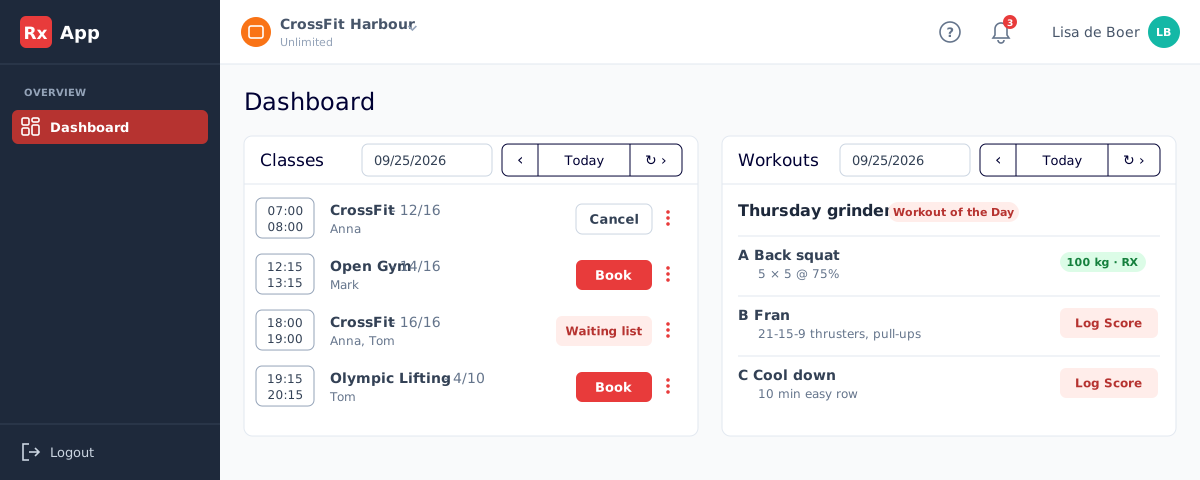
Dashboard is your starting point. With an active membership it shows the class schedule on the left and today's workouts on the right. Use the arrows and Today to move between days.
- Your membership is being reviewed: the affiliate still has to approve your membership.
- Your membership is active, but no schedule: your affiliate does not offer class booking through RxApp.
- Find an affiliate: you have no membership yet. You can still log personal workouts.
Book or cancel a class
If your affiliate has the Schedule module, upcoming classes appear on Dashboard.
- Open Dashboard and choose the correct day.
- Select Book on an available class. When it is full, select Waiting list to be added to the waiting list.
- Select a class row to see the coaches and who else is coming.
- Use Cancel on your booking, or Leave waiting list, when you can no longer attend.
- Check Notifications for booking confirmations, cancellations, and waiting-list updates.
- Cancelling after the affiliate's cancellation deadline shows a Late cancellation warning. Select Cancel booking to continue or Never mind to keep your place.
- Booking not possible explains why a booking failed, for example that booking has closed, that you can book from a later date, or that your credits are used up.
- Buttons are disabled once a class has started.
Log workout results
If your affiliate has the Workout module, programmed workouts appear on Dashboard.
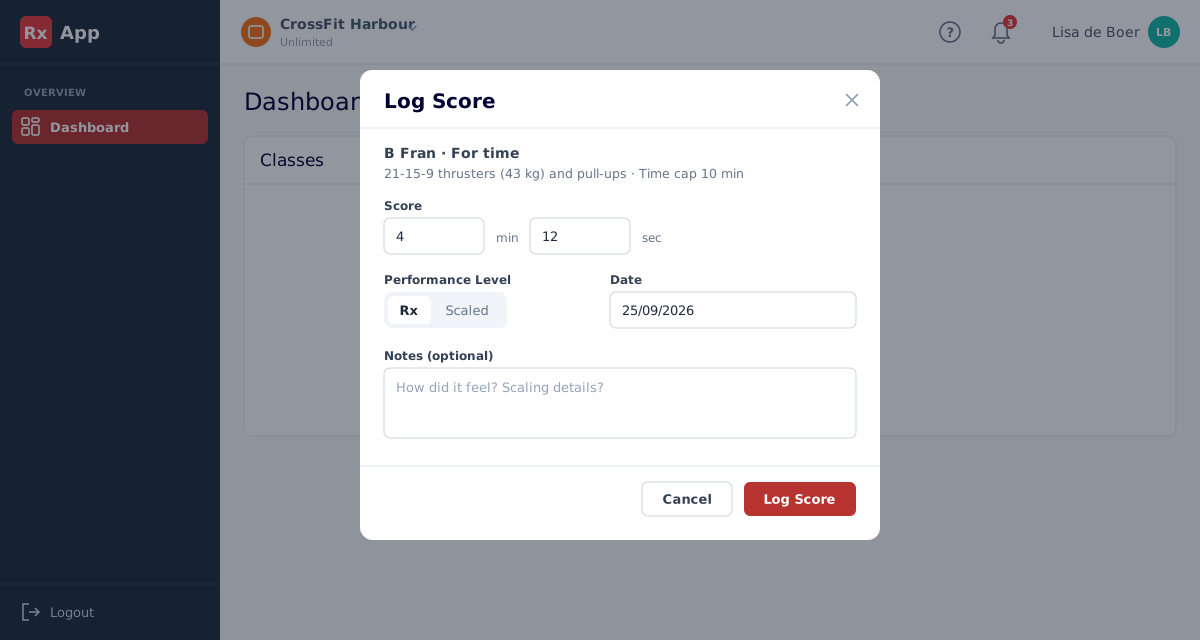
- Find the workout on Dashboard and select Log Score on the part you completed.
- Enter the requested score, such as time, repetitions, rounds, or weight.
- Choose the Performance Level (Rx or Scaled), check the date, and add notes if useful.
- Select Log Score. RxApp shows New Personal Record! when you beat your best.
- Select Leaderboard to compare your score with others; select a logged score to update it.
Review your training history
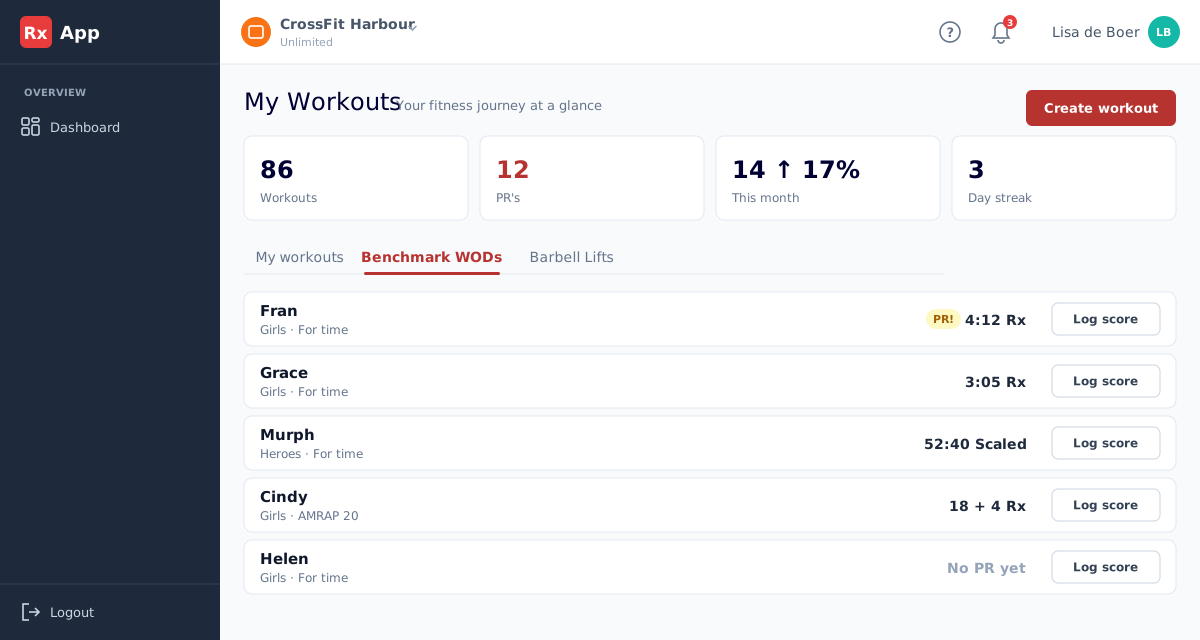
- Open your avatar menu and select My Workouts.
- The tiles at the top show your number of workouts, PRs, this month's activity, and your day streak.
- Use Benchmark WODs and Barbell Lifts to see your best result per benchmark and to log a new score.
- Select a benchmark to open its progression with your personal record and all results.
- Select Create workout to track training that was not programmed by your affiliate.
Injuries and notifications
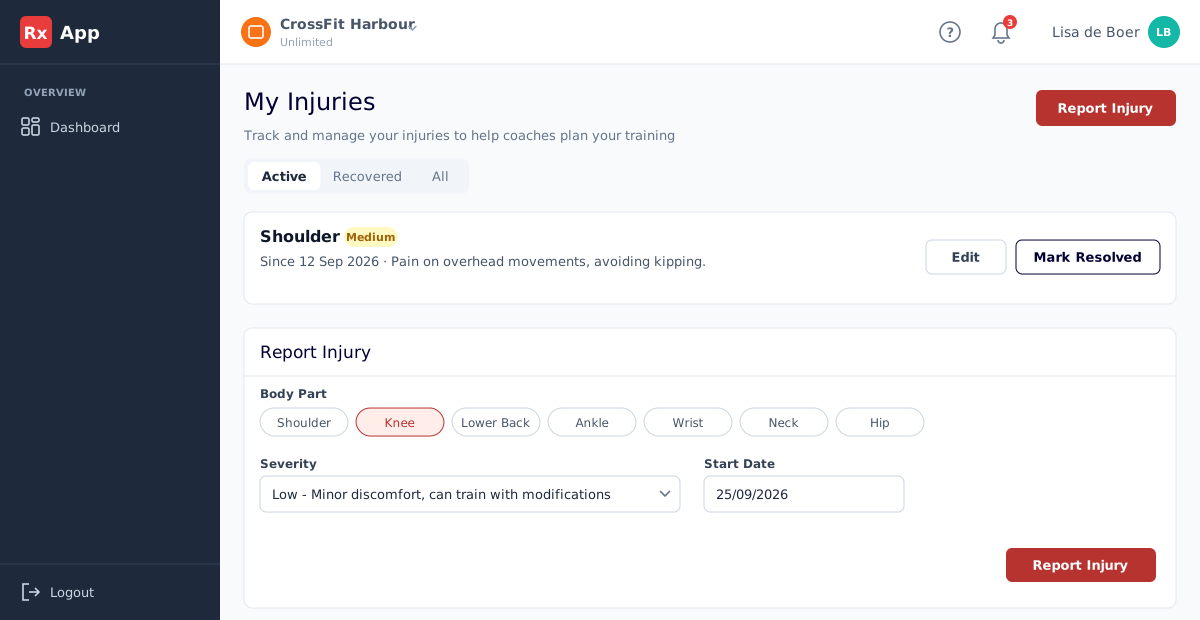
- Open Profile → Health → Injuries and select Report Injury. Choose the body part and severity; your coaches are notified.
- Use Edit to update an injury and Mark Resolved when you have recovered.
- Use the bell in the header to open your notifications, and Mark all read to clear them.
- Open Preferences → Notifications to choose which booking, fistbump, comment, and affiliate messages you receive.